

Pardon my French, but I haven’t used a Poirot picture yet and I’m going to Paris so I thought I’d put some in the title!
In this weeks blog I’m going to show how I triggered a Power Automate flow from a custom button in a model driven app.
Remind Me Button – Creating the Trigger Column
In my example, I’m introducing a ‘Remind Me’ button to my Murder Mystery System, which will trigger a Power Automate flow that emails me with the details of episode, but this method can be used for any scenario where you want a button to trigger a flow.
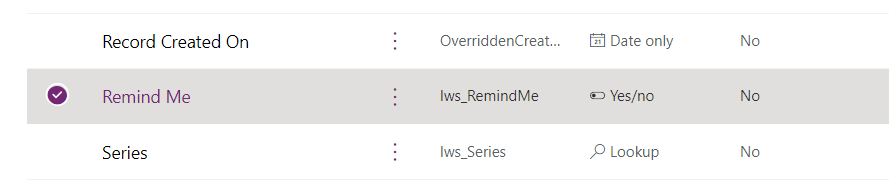
First off, you need to create an additional column in your table, which will be used to trigger the flow. I’ve used a Yes/no choice column named ‘Remind Me’.
Creating the button
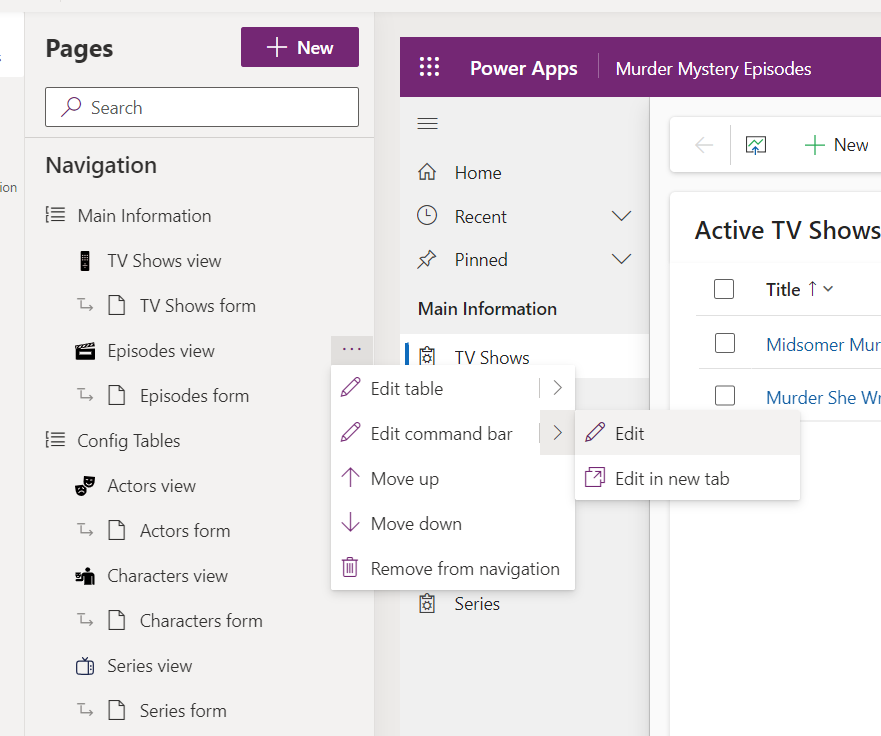
Then I need to create my custom button, on my command bar. In my solution, if I open my app in edit mode I can access the Command Bar editor by clicking on the 3 ellipses next to Episodes view and select ‘Edit command bar’
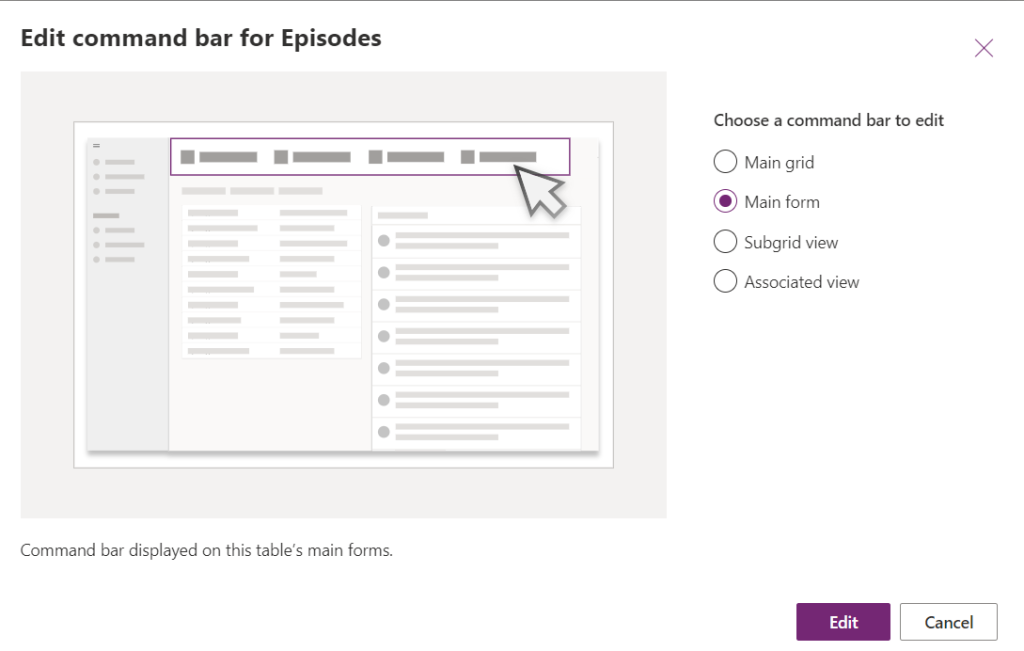
From there, I can select the ‘Main Form’ option and start creating my new button
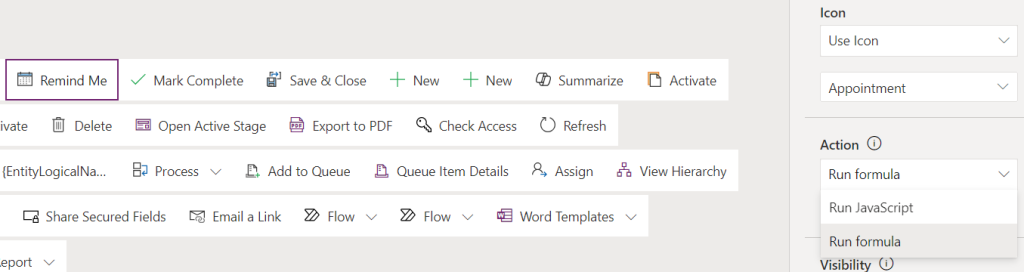
The button ‘Remind Me’ is added to the command bar, and ‘Run formula’ is selected in the Action dropdown.
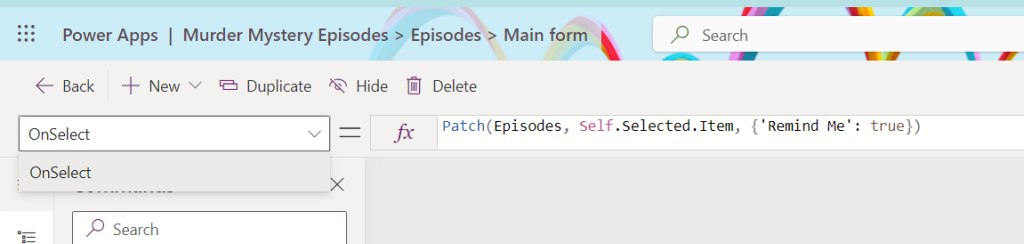
In the OnSelect PowerFx editor we are going to update the current record, and set the ‘Remind Me’ column to true/yes.
This is done by using Patch, the table name is then listed as the entity, then Self.Selected.Item which means it’s the current record that will be updated, and then the code outlines the column display name to update and the value.
Trigger the flow
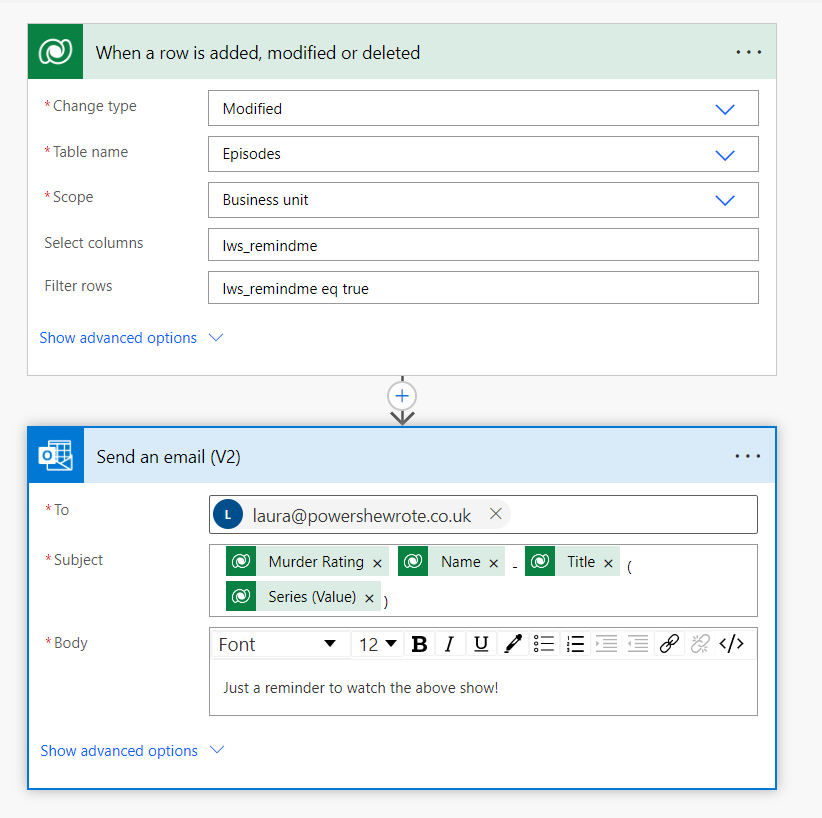
Now you’ve got the button updating the column to true, when pressed, you can create your flow. The flow trigger will be a dataverse row being modified, with the Select columns set to the colum you’ve updated by the button (lws_remindme in this example), and then use Filter rows to ensure it only runs when set to true or yes (lws_remindme eq true). You can now creates actions to achieve the purpose of your flow.
NOTE : Make sure that you include an row update action in your flow, that sets the column back to false, so that the button can be used again
Considerations
If you are like me, you may find yourself questioning whether you’ve successfully pressed the button (we can’t all be confident clickers!)… so I like to provide visual feedback that I have.
My preferred method of doing this, is to hide the button temporarily. This can be easily achieved by creating a formula on the Visible property of the button. By using the code !Self.Selected.Item.’Remind Me’ it means that the button is visible when ‘Remind Me’ is false/no and is not visible when it’s set to true/yes.

This means that once clicked, it’ll be removed from the bar, which prevents multiple presses. When the flow sets it back, then the button will be visible again.
An alternative would be to use Notify to alert the user that they have pressed it.
CODE USED
 OnSelect
 Patch(Episodes, Self.Selected.Item, {'Remind Me': true})

 Visible
 !Self.Selected.Item.'Remind Me'