

I’ve been involved in user interviews lately, and my colleague has been using the Teams meeting transcripts to review what was discussed, when it comes to writing up the discovery report…
Unfortunately Teams has let me down, twice.
The meeting recording had been captured successfully but without any transcription available. So I came up with a simple solution using applications available on my work laptop:
- ClipChamp (I’ve been able to download it through my personal and work MS account)
- MS Word Online
Here are the steps I carried out
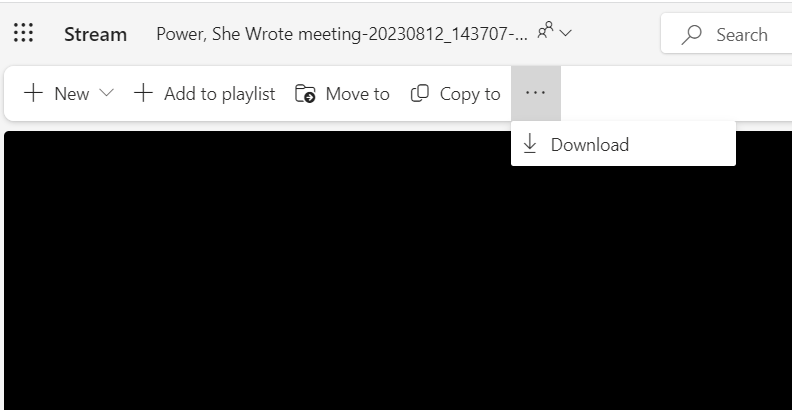
Download the meeting recording from Stream
Click on the 3 ellipses and select to ‘Download‘
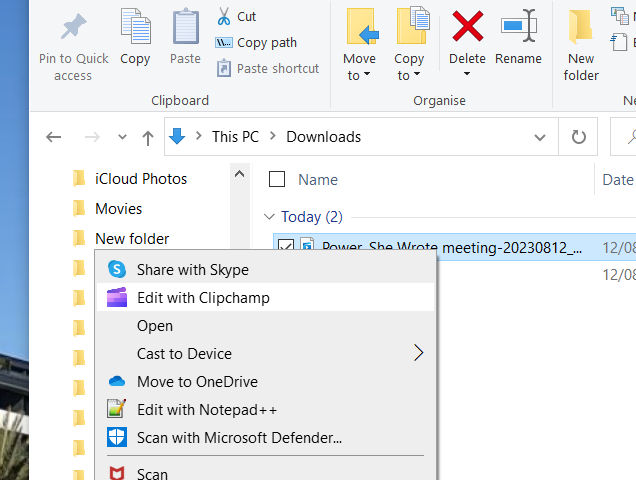
Open downloaded recording in ClipChamp
Right click on the file and ‘Edit with Clipchamp‘ – if that option isn’t there click on ‘Open’ and it should be available there.
Detach the audio from the video file
Right click on the video channel, and select ‘Audio‘ -> ‘Detach‘
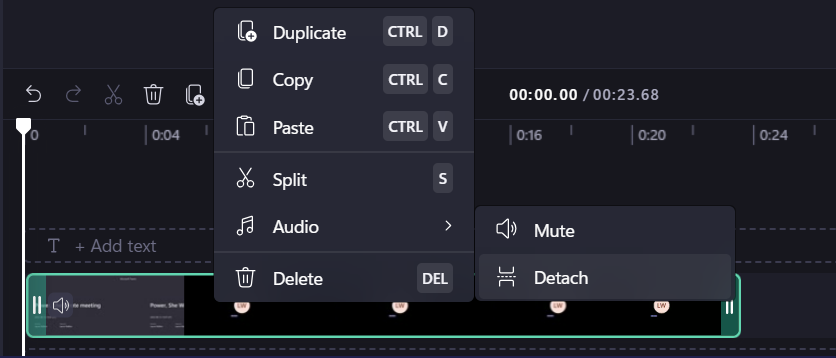
This might take some time to finish, depending on the length of the recording, however will result in a new ‘(Audio)..’ file being created in the same folder as the recording
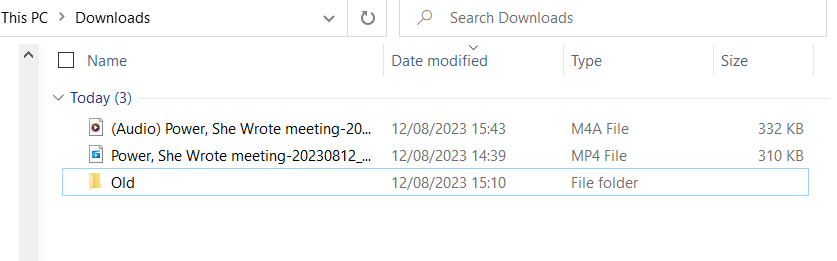
Create a new Word document
In a browser window, type ‘word.new‘ and a new Word Online document will be created. You may need to login at this point.

Import the audio file to the Word document
Click on the ‘Dictate‘ menu item, and select ‘Transcribe‘.
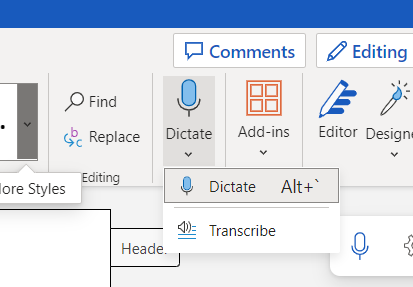
This will load the Transcribe panel. Select the language as required, and then ‘Upload audio‘
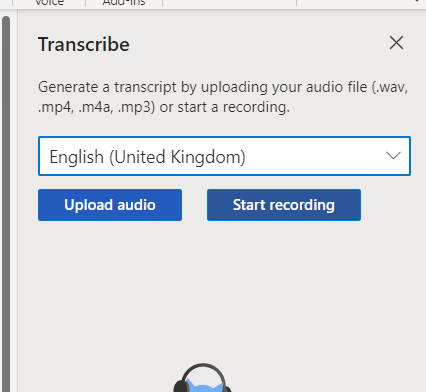
This will show the standard file selection window. Select the audio file and ‘Open‘ it. You will then get a progress bar in the panel.
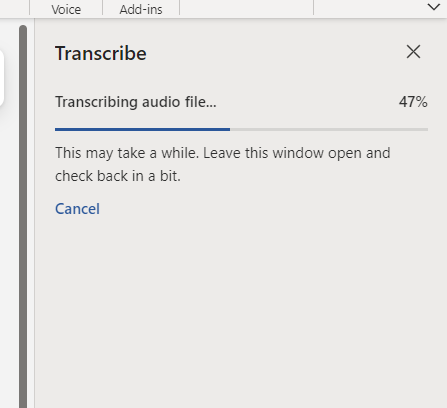
Identify speakers and add to the document
Once complete the transcription will appear in the panel. If you hover over one of the speakers, a pencil icon will be shown.
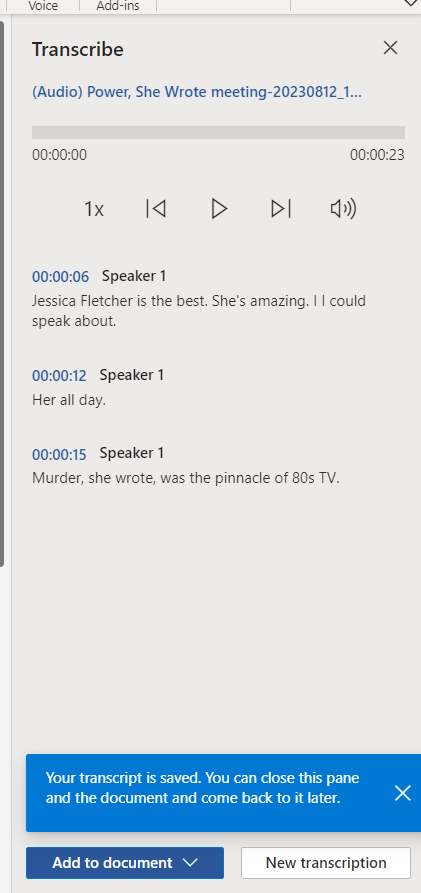
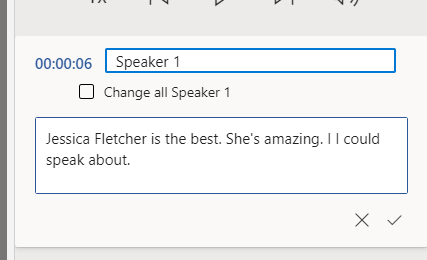
Click on the pencil. This enables you to make any changes required, as well as rename Speaker 1 to the person’s name. You can also check the box to ‘Change all Speaker 1‘. Repeat this with all the speakers
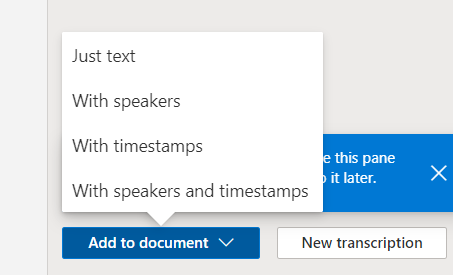
You can then ‘Add to document‘ with your preferred option.
Et voila, mon amie, you have a Word document transcription for your meeting.